
Today, AMO launched two new event features: one popular request for member type based pricing, and a second new tool for unique email confirmation content based on registration options.
Read on below for a walkthrough on how and when to use them!
Activity based confirmation content
Events frequently have several registration options included in the process, and many times there is additional information that needs to be given to registrants who chose certain options. That additional information may be privileged to certain payment options, or simply not be relevant to everyone attending.
Example: You have a weekend-long event created and within that event there are three webinar options taking place over the course of the weekend. You’ve set the various webinars as activity options; they each have a price and a unique webinar URL associated with them.
You would only want to send the Webinar A URL & info to attendees that purchased Webinar A, and different Webinar URL’s to attendees that chose B and C.
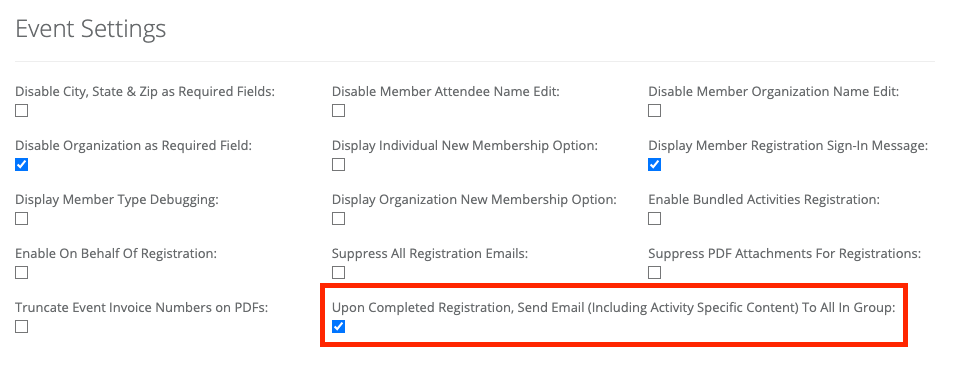
First, enable “Upon Completed Registration, Send Email (Including Activity Specific Content) To All In Group:” feature under the General Tab -> Event Settings:
Second, open each of your activities and add unique confirmation content:
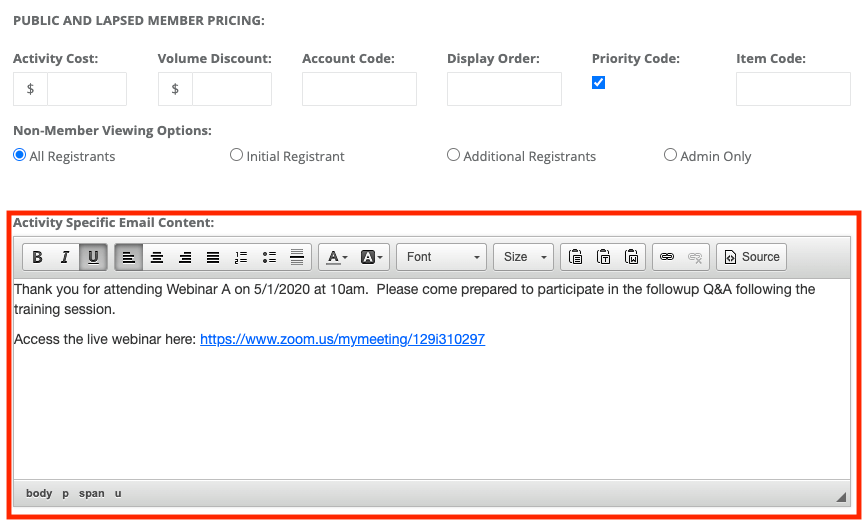
If this box is disabled, please enable the checkbox from step 1, and save your event first.
After registration is complete, each registrant will receive the email content added in the “Alternative Email Message For Receipt/Invoice:” area, as well as any unique activity content that you have added to the activities each registrant has chosen.
Member Type based activity pricing
Event activities now have the ability to define different pricing based on the member-type of the member.
When initially creating an activity, nothing has changed – you’ll still fill out the default member pricing, and non-member pricing as usual. If you don’t have separate pricing options for your different member types, you can save the activity and the process is complete, as usual. However, if you need to setup more pricing options for one or more member types, read on!
The first thing you’ll notice when you edit an existing activity is that the pricing options for Member and Non-Member are no longer visible; these have been moved to a new tab called Pricing Levels:
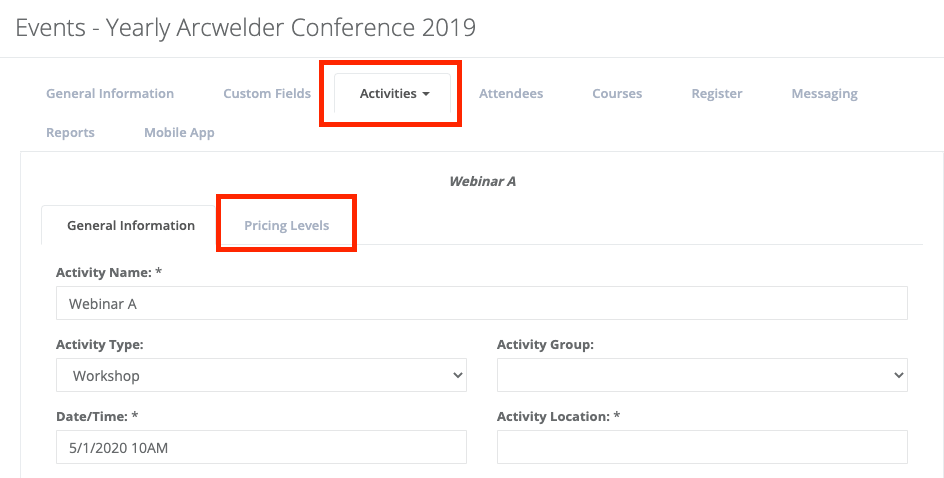
Click on the Pricing Levels tab to continue the process. Toward the top of the Pricing Levels area, you’ll find the two familiar options for members and non-members that you setup when creating the activity. Below those options is a new area for creating pricing levels for member types as desired – you can create as many as you need.
Click the green plus icon to add a pricing exception. In the dropdown at the top, select the member type you’d like to setup. All of the fields are the same as the Member/Non-member fields that you’re used to seeing:
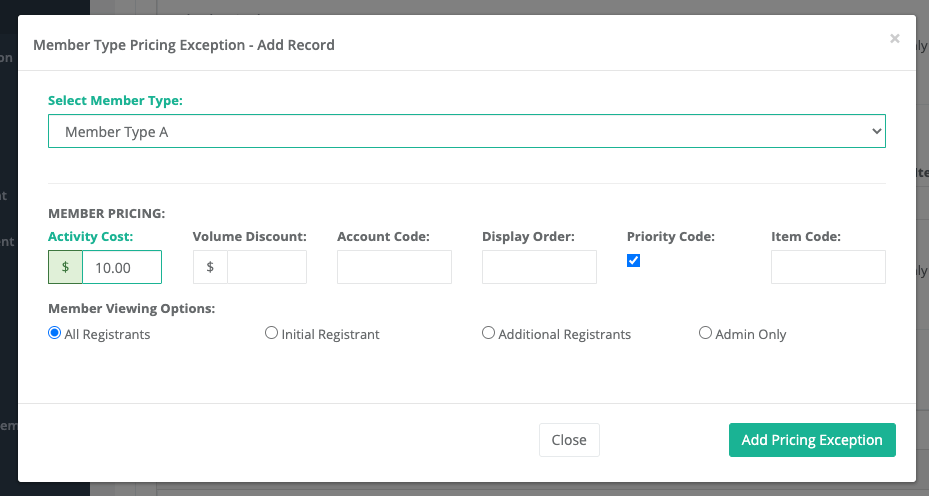
To save, click “Add Pricing Exception”. Repeat the process for each member type that needs a unique price assigned.
Lapsed members (e.g. their paid thru date, or their organization’s paid-thru date has passed) will be shown the public and lapsed member pricing.
That’s all for this AMO update! If you have any questions about these new features or other aspects of AMO, please email our support team at help@amohq.com for a speedy reply.